Message Gateway
Gateway channel lists and detail reads return saved metadata with secret-presence placeholders; they do not decrypt credentials or environment-variable values. A placeholder means a value is stored, not that it is valid. Connector execution and explicit connection tests load credentials separately and validate them when used.
Security: Think Before Enabling
A Message Gateway channel opens an external pathway (Slack DM, GitHub @mention, Shortcut comment) that can prompt agents holding your branch’s full surface area: code, MCP servers, env vars, and any credentials in scope. Worth thinking through before you flip it on, but not categorically dangerous.
Things working in your favor:
- Email-based user matching. Inbound Slack messages are aligned to Agor users via the
users:read.emailscope; GitHub and Shortcut mentions are aligned via an explicituser_mapor the sender’s platform email. When a match exists, the spawned session is attributed to that real Agor user, so prompts run under their identity and audit trail, not as a generic bot. Unmatched senders are rejected (or surfaced to admins). - Encrypted credentials at rest. Bot tokens, app tokens, and private keys are stored encrypted in the daemon database.
- Outbound-only transport. Slack uses Socket Mode; Discord uses its Gateway connection; GitHub and Shortcut use API polling. None of these connectors require a public webhook URL.
- Per-channel agent config. Permission modes, model, and MCP server attachments are scoped to the channel, not global.
Things that still warrant caution:
- Channels open external pathways into agent context. Anyone who can DM the bot or
@mentionit on a watched GitHub repo or Shortcut story can ask the agent to read, write, or execute code on the target branch. If the channel runs intrustmode with broad MCP access, that pathway is effectively a remote prompt seat. Treat it as such. - Restrict who can reach the bot. Limit Slack DM scope (private workspace or app distribution settings), narrow GitHub
watch_repos, and use Shortcut’s search scope to constrain which stories can summon the assistant. - Use dedicated branches. Don’t point channels at branches holding production secrets. Create isolated branches scoped to gateway use.
- Pick the right permission mode.
supervisedormanualmodes preserve human-in-the-loop on tool calls;trustis fine for bounded, well-understood automations but removes that gate. - Mind the execution isolation mode.
simpleshares the daemon account,sandboxapplies fail-closed branch mounts, anddelegatedrelies on a reviewed external substrate. Gateway attribution alone is not a filesystem boundary. - Rotate tokens. Bot tokens, app tokens, API tokens, private keys, and webhook secrets should be rotated like any other secret.
The mental model: a gateway channel is a remote terminal into an agent that holds the same authority as a human prompting that branch. Configure who can reach it, what it can do, and which identity it runs as, and the rest is normal Agor surface area.
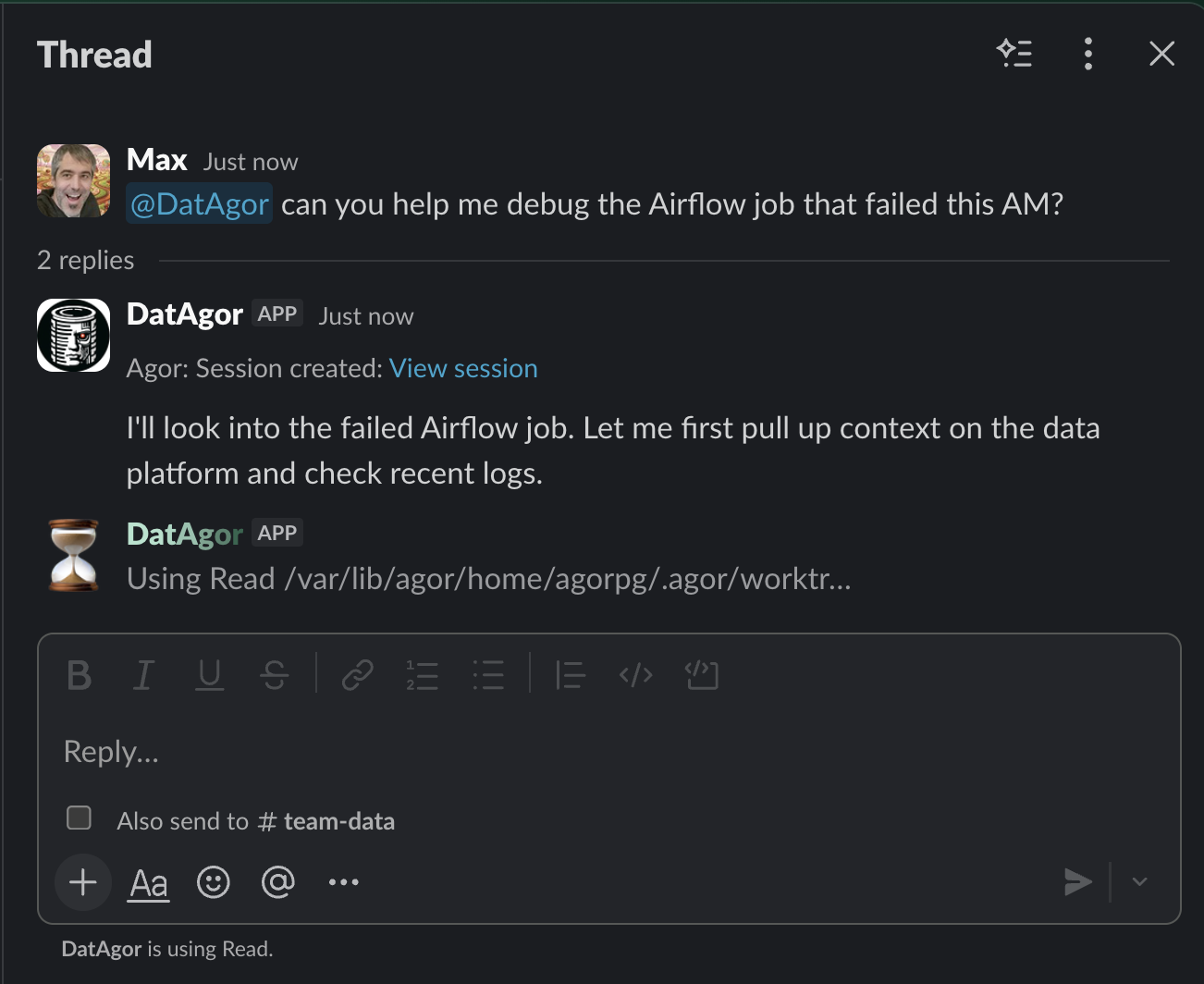
The Message Gateway connects external messaging platforms to Agor’s agent sessions. Mention your Slack or Discord bot in a supported channel, mention @agor on a GitHub PR, or mention the configured assistant in a Shortcut story comment, and Agor spins up a coding session on the right branch with the right agent, then routes responses back to the platform. In Slack and Discord channel-like surfaces, every prompt requires an explicit bot mention.
Currently supports Slack, Discord, GitHub, Shortcut, and Microsoft Teams. WhatsApp and Telegram connectors are planned.
What is a Channel?
A Channel is a portal into a branch. It defines:
- A home branch. The persistent branch where every session spawned by this channel will operate. Think of it as a command center, like an teammate branch that supervises a project.
- An agentic tool configuration. Which coding agent to use (Claude Code, Codex, Gemini, OpenCode), its preset or inline model and permission settings.
- An MCP server selection. Which external capabilities to attach, independently of the agentic-tool preset.
- Platform credentials. Bot token, app token, and other secrets needed to send and receive messages (encrypted at rest).
You can create multiple channels for the same or different branches. For example:
- “Optimus Prime” runs Claude Code (Opus 4.8) on your main teammate branch, with Slack + GitHub MCP servers
- “Scout” runs Claude Code (Sonnet 4.5) on a lighter review branch, trust mode, no MCP servers
- “Codex Runner” runs Codex on a
superset-frontendbranch for quick JS tasks
Gateway channels keep an internal per-channel key for Agor’s generic inbound endpoint, but supported integrations usually do not require you to copy it anywhere. Slack uses Socket Mode, while GitHub and Shortcut use API polling; no public webhook URL is needed for those connectors.
How It Works
When a message arrives from a platform (e.g., a Slack bot mention or a GitHub @agor mention), the gateway processes it through a simple pipeline:
- Authenticate. The gateway looks up the channel by its key and verifies it’s enabled.
- Map thread to session. If this is a new platform thread, create a fresh Agor session on the channel’s target branch with the channel’s agentic tool configuration. If this thread has been seen before for this gateway channel, route the mention to the existing session. Multiple Slack bots can participate in the same Slack thread; each bot gets its own mapping.
- Send prompt. The message text is sent to the session via Agor’s standard prompt flow (task creation, executor spawn, the full pipeline).
- Agent runs. The coding agent (Claude Code, Codex, etc.) processes the prompt with full access to the branch, MCP servers, and any configured tools.
- Route response back. When the agent produces a response, Agor’s outbound routing hook intercepts it and posts it back into the same platform thread. Formatting is adapted per platform (Slack mrkdwn conversion, GitHub markdown pass-through).
- Repeat. Slack follow-ups require another explicit mention. When mentioned again, Agor fetches intervening Slack thread replies and includes them as catch-up context before prompting the agent.
Slack DM                    Agor Daemon                    Agent
────────                    ───────────                    ─────
  │                              │                           │
  │  "Fix the login bug"         │                           │
  ├─────────────────────────────>│                           │
  │                              │  Create session           │
  │                              │  + thread mapping          │
  │                              │                           │
  │                              │  Send prompt              │
  │                              ├──────────────────────────>│
  │                              │                           │
  │                              │        Agent response     │
  │                              │<──────────────────────────┤
  │   "I've fixed the login..."  │                           │
  │<─────────────────────────────┤                           │
  │                              │                           │
  │  "Can you also add tests?"   │                           │
  ├─────────────────────────────>│                           │
  │                              │  Route to same session    │
  │                              ├──────────────────────────>│
  │                              │                           │
The outbound routing is a lightweight after-hook on message creation. For sessions without a gateway mapping (the vast majority), it’s a single database lookup that returns immediately, effectively a no-op.
Multi-tenant listener lifecycle
Standalone SQLite installations require no new configuration and keep the historical process-local listener lifecycle.
Provider limit in PostgreSQL mode: Slack, GitHub, Shortcut, and Discord listeners support distributed ownership. Microsoft Teams currently depends on a local Bot Framework port and in-memory conversation references, so Agor fails its listener closed on PostgreSQL. Teams remains available only in standalone SQLite until its ingress and reply-routing contract is redesigned.
On PostgreSQL, every daemon performs bounded recurring discovery. A durable, database-time lease on each gateway channel chooses one listener owner; daemon presence and Redis are not ownership signals. The owner renews a 30-second lease. A hard-dead owner becomes claimable after 30 seconds; discovery adds at most a 6-second jittered idle wait plus a bounded keyset pass (25 candidates per page, at most 250 ms between full pages) and provider connection time. Credential/config updates, disable, and delete revoke the old owner immediately. Provider callbacks, durable occurrence completion, and polling checkpoints are fenced by an opaque claim token. Graceful shutdown stops intake, waits up to five seconds for admitted callbacks, and releases only after both the transport and callbacks are drained; otherwise the lease expires normally.
Discovery returns only enabled channel and tenant IDs. The daemon then leaves system scope, reloads the full channel (including credentials) under that tenant’s normal RLS scope, and starts the connector with an immutable tenant binding. Provider callbacks re-enter that captured tenant before reading mappings or creating sessions.
Listener instances are tenant-qualified. PostgreSQL outbound routing does not use listener presence or a process-local channel cache as authority: any daemon that handles a durable Message reloads its mapping and fresh channel credentials inside the Message’s tenant. A channel refresh in a tenant with no enabled channels cannot stop or suppress another tenant. Missing, stale, or inconsistent discovery metadata is skipped rather than falling back to the static tenant.
Stable provider event IDs suppress duplicate Slack, GitHub, Shortcut, and Discord deliveries. Slack keys the logical message by workspace, conversation, and message timestamp so alternate Slack envelopes for the same message converge. GitHub and Shortcut polling watermarks are persisted behind the same owner fence. Discord Gateway transport sequence and session state are process-local: a reconnect or ownership change creates a fresh transport session. Discord conversation recovery uses bounded REST catch-up after the last Discord message cursor whose mention Task was admitted. That cursor is durable routing state, not a transport checkpoint. Their create-comment APIs do not accept an idempotency key, so a crash after the provider accepts an acknowledgement but before Agor records it can still produce a duplicate acknowledgement; the Agor Session and Task remain deduplicated.
The legacy generic channel-key inbound endpoint has no provider-event identity, so it is available only on standalone SQLite and fails closed on PostgreSQL.
Migrations 0066_gateway_listener_discovery and
0076_gateway_listener_ha install the narrow discovery policy, lease columns,
and tenant-RLS provider-event table. Apply normal Agor migrations before
serving traffic with the upgraded daemon; no database role with BYPASSRLS
and no superuser daemon connection is required.
Outbound branch binding
Proactive outbound emits (agor_gateway_emit_message) and Slack thread history reads made from a session are bound to that session’s own branch: the gateway channel’s target branch must match the calling session’s branch, and there is no admin-role bypass. agor_gateway_outbound_targets_list only returns channels a session can actually use. Calls made without session context (personal API keys) follow the regular user-permission model instead.
Discord outbound emits use a channel:<snowflake> target. A Discord outbound
seed is recorded durably; the first eligible human reply to any seed chunk
consumes that seed and starts the mapped session. Replies to later response
chunks continue the same session.
Slack thread behavior
In Slack channels, Agor uses a hard mention rule:
- A Slack channel or group thread only starts an Agor session when the bot is explicitly
@mentioned. - Later prompts in that Slack thread also require an explicit mention. Ordinary human replies do not wake the agent.
- On each mention, Agor looks up Slack thread replies since the bot last received a prompt and includes them as catch-up context.
- The same Slack thread can involve multiple Agor/Slack bots. Each explicitly mentioned bot maps the thread to its own Agor session.
This keeps normal team discussions from turning into implicit agent prompts while still making late mentions feel natural.
Setting Up Slack Integration
Slack setup is manifest-based. Instead of clicking through OAuth scopes, event subscriptions, and Socket Mode by hand, you describe what the bot should do and Agor produces a complete Slack app manifest. Pasting that manifest into Slack’s “Create app from manifest” flow preconfigures every scope and event in one step, so the scope list can never drift from what the connector actually calls.
There are two ways to get the manifest:
- The Add Channel wizard (UI). When you create a Slack channel in Agor, a guided wizard turns your choices into a live scope/event summary, then hands you the finished manifest ready to copy on the next step.
- The
agor_gateway_slack_manifest_generateMCP tool (agent-driven). Ask an agent to generate the manifest for you. The tool is the programmatic equivalent of the wizard, backed by the same generator: from a set of capability toggles it returns the manifest JSON, the derived bot scopes and events, ordered setup steps, and the channel config to pass toagor_gateway_channels_create. It is pure. It creates no Slack app, no Agor channel, and validates no tokens. When an agent completes setup, it creates the channel disabled and without tokens viaagor_gateway_channels_create(enabled: false), then callsagor_widgets_request_gateway_tokenso you enter thexoxb-/xapp-tokens in a secure inline form. The agent never asks you to paste tokens into the chat or passes them asagor_gateway_channels_createarguments, because raw secrets in tool arguments would leak into the MCP transcript.
Once a channel exists, its edit form also has an App Manifest panel showing the recommended manifest for the channel’s current options. Re-paste it into Slack whenever you change surfaces or capabilities so the app’s scopes stay aligned.
The one step neither path can cover is the app-level token: connections:write is an app-level scope, not a bot scope, so you generate that token by hand after creating the app.
1. Build the manifest in Agor
- Open Settings (gear icon) → Gateway Channels → Add Channel.
- Select Slack as the channel type. A four-step wizard appears: Channel → Options → Create app → Tokens & test. A consistent footer carries the flow, with Back and Cancel plus a primary button that reads Continue on each step and Create channel on the last.
- On the Channel step, set the basics: Channel Type (Slack), a Name for the Agor channel, the Target Branch where sessions run, and whether the channel is Enabled. Click Continue.
- On the Options step, choose what the bot can do:
- App Name. The display name for the Slack app.
- Surfaces. Where the bot listens. Direct messages are always on; optionally add Public channels (all, or a specific list of channel IDs), Private channels, and Group DMs.
- Align Slack users. Match each Slack profile’s email to an Agor user (unmatched senders are rejected). When off, pick a single Agor user to run every session as.
- Enable outbound sends. Allow authorized agents to post proactive Slack messages through this channel.
- As you toggle options, the wizard updates Required Slack Scopes & Events with the derived bot scopes and event subscriptions. You never add a scope by hand — the manifest itself is assembled for the Create app step, where you copy it. Click Continue.
2. Create the Slack app from the manifest
- On the Create app step, click Copy manifest.
- Go to api.slack.com/apps → Create New App → From a manifest.
- Pick your workspace, paste the manifest, and click Create.
- Click Install to Workspace and approve the requested scopes.
- Under OAuth & Permissions, copy the Bot User OAuth Token (starts with
xoxb-). - Under Basic Information → App-Level Tokens, generate a token with the
connections:writescope and copy the App-Level Token (starts withxapp-). This token is what enables Socket Mode.
3. Finish the channel in Agor
- On the Tokens & test step, paste the Bot Token (
xoxb-…) and App Token (xapp-…). - Optionally click Test connection to verify the bot and app tokens before saving. (A passing test is advisory. Slack can’t fully verify channel access up front.)
- Optionally expand Agent Configuration to set the agent, model, permission mode, MCP servers, and channel-level environment variables for sessions created by this channel.
- Click Create channel. The daemon immediately starts a Socket Mode listener for the channel.
4. Message your bot
DM the bot from the Apps section of Slack, or @mention it in any channel or group the bot has been added to. You’ll see session creation confirmed, followed by the agent’s response in the same thread. In channels and group DMs the bot responds only to explicit @-mentions; direct messages don’t need one.
Gateway conversations appear under Gateway Sessions on the target branch. Sessions they spawn are nested beneath the gateway parent, including remote-created sessions that live on another branch; selecting a remote child opens its canonical session. Gateway roots are ordered by most recent activity. Section and parent collapse choices persist on board cards.
Optional session cleanup
Gateway Sessions are retained until someone archives them. Agor does not currently run an automatic gateway-retention worker or expose a per-channel retention setting.
For branch-wide cleanup today, use a scheduled prompt for an explicit, workspace-specific policy. Have the scheduled teammate call agor_sessions_bulk_archive with sessionType: "gateway", its branchId, and the desired olderThanDays; test the filter with dryRun: true before changing the schedule to dryRun: false.
Filters select root Sessions. The dry run reports additional active same-branch forked or spawned descendants and how many of them are still executing. If descendants exist, execution requires an explicit choice: includeChildren: true archives the complete local trees, while includeChildren: false intentionally archives only the matching roots. Archiving hides Sessions but does not stop their execution.
Remote-created Sessions live on another branch and retain an independent lifecycle. Bulk archive never follows those cross-branch provenance links.
Archiving is reversible and preserves the Session transcript for search and audit. The tool applies the schedule owner’s normal RBAC permissions and reports Sessions it cannot modify.
Scope reference
The wizard and manifest bake these in automatically. This table is for understanding what each capability grants, not a checklist to apply by hand. Scopes are bot scopes (requested in the manifest); connections:write is the one app-level scope, generated separately on the app-level (xapp-) token.
| Capability | Bot scopes added | Events added |
|---|---|---|
| Direct messages (baseline, always on) | chat:write, im:history, im:read, users:read | message.im |
| Public channels | app_mentions:read, channels:history, channels:read | app_mention |
| Private channels | groups:history, groups:read | — |
| Group DMs | mpim:history, mpim:read | — |
| Align Slack users | users:read.email | — |
| Outbound sends | chat:write.public, channels:read, groups:read, im:write, users:read.email | — |
Notes:
app_mentions:readand theapp_mentionevent are added whenever any channel-like surface (public channel, private channel, or group DM) is enabled. Those surfaces all trigger on@-mention, so nomessage.channels/message.groups/message.mpimevents are requested.connections:writenever appears in the manifest. It lives on the app-level token you generate under Basic Information → App-Level Tokens.
Discord behavior
Discord is intentionally narrow and explicit:
- Each enabled row names one bot application, one guild, and one or more allowlisted public parent channels. A privileged Message Content intent must be enabled in Discord and acknowledged in the Agor configuration. A structured mention outside inline or fenced code is the wake-up trigger; mention text is not a substitute for the intent.
- Top-level summons use
public_thread_per_summon: Agor creates or reuses one public thread for the summon, and the response is delivered in that thread. Existing public-thread mappings remain readable for compatibility, but old implicit configurations are disabled and inert until explicitly translated. The configured auto-archive setting applies to threads Agor creates. - The channel and author boundaries are separate. Public parent channels,
Discord user IDs, and Discord role IDs are all explicit allowlists; at least
one author allowlist entry is required. DMs, private threads, wrong guild or
channel, bot/self messages, webhooks, embeds, components, stickers, polls,
and messages without a structured mention are ignored. Attachment handling
is controlled separately by the explicit
filescapability below. files:falseis the default text-only behavior. With the explicitfiles:truecapability, a live mentioned message may include PNG/JPEG attachments; each accepted image is downloaded from Discord’s signed CDN URL into the existing tenant/session/branch upload staging and exposed to the remote executor through its normal materialization tool. Unsupported or mixed attachment/rich payloads are rejected rather than silently dropping content. Per-file and per-message count/size limits still apply; failed or expired downloads deliver the text with a bounded degradation note.- Identity is either (a) aligned through a tenant-owned Discord user ID → Agor email map, where an unmapped author is rejected, or (b) one explicitly chosen fixed Agor user. These modes are mutually exclusive. There is no fallback from an absent map entry to a fixed user.
Catch-up and durability
The live mention is the only wake-up trigger. After the mapping’s last admitted Discord message cursor, Agor uses Discord REST history to fetch the bounded interval through the live mention, oldest first. The defaults are 5 pages, 200 messages, 32 KiB of prompt context, a 30-second request timeout, 2 rate-limit retries, and 10 seconds of total rate-limit delay. Operators may lower or raise each value only within its documented ceiling: 10 pages, 500 messages, 128 KiB, 60 seconds, 5 retries, and 30 seconds.
Fetched history is untrusted, in-memory context; it is not a durable transcript and does not create a delayed Task. Agor admits the Task before advancing the cursor. If history or Task admission fails, the cursor remains unchanged. A human reply that arrives without a live mention is not a Task; a later mention re-reads the bounded interval. This means missed mentions are not replayed by an autonomous history worker, and a successful live mention is the only event that wakes the agent.
Discord transport state is stateless from Agor’s durable perspective. Gateway
sequence/session checkpoints, repair/redrive controls, provider history, and
provider actions are not operator configuration or MCP resources. Only routing
facts, admitted cursors, mappings/aliases, and the narrow final-response
delivery path are durable. Responses remain text-only and expose no agent
tools (agent_tools:[]). Inbound images are opt-in (files:true) and are
materialized through the normal executor boundary; they are not conversation
history. Text is split into Discord-sized chunks;
reply aliases resolve to the same Agor session. This is not a promise of live
Discord delivery or end-to-end provider guarantees: the connection test is an
advisory probe, and provider outages or permissions can still prevent delivery.
Proactive sends are the one deliberate seed exception. An authorized agent may
target only channel:<allowlisted-parent-snowflake>. The send is recorded as a
durable seed; the first eligible human reply consumes that seed and starts the
mapped session without creating a summon thread. Replies to later response
chunks continue through the compatibility aliases.
Setting up Discord
Use the Discord setup section in Settings → Gateway Channels, or the
agor_gateway_discord_setup MCP tool, for a secret-free checklist. Neither
creates a Discord application or calls Discord. Before enabling a row:
- Create one Discord application and bot, enable the privileged Message Content intent, and copy the Application ID and target Guild ID.
- Invite the bot to each allowlisted public parent channel with only the View Channel, Read Message History, Send Messages, Create Public Threads, and Send Messages in Threads permissions needed by the contract.
- Configure the explicit channel and user/role allowlists, thread mode,
auto-archive setting, bounded catch-up values, identity mode,
files:false(or opt in to bounded PNG/JPEG inbound images withfiles:true),agent_tools:[], and optional proactive target. Enter the bot token through the secure credential form; do not paste it into chat or MCP arguments. - Keep the row disabled while translating an old implicit configuration. Run the connection test if useful, then enable only after the explicit contract validates. A passing probe does not verify future event delivery, role-matchability, Task admission, or final response delivery. If the REST application resource exposes flags, Agor fails closed when it reports that the Message Content capability is absent; an unavailable flags field remains an explicit unknown rather than proof of portal approval.
For a staged rollout, create the row disabled, verify the app/guild and allowlists, test with a permitted author in one public channel, then expand the allowlist deliberately. Rollback is disabling the row or removing its listener; existing mappings, aliases, and proactive seeds are retained for compatibility. Do not use old durable Discord resume/checkpoint settings or live-message-only assumptions as configuration: they are not part of this contract.
Setting Up GitHub Integration
How It Works
When someone mentions @agor (or your app’s name) in an issue comment or a PR conversation comment, Agor picks it up via API polling and creates a session. The session runs on the target branch, and the agent’s final response is posted back as a PR/issue comment under the app’s bot identity (e.g., agor[bot]). Opening an issue or PR, submitting a review, and adding an inline review comment do not trigger the gateway.
Key differences from Slack:
- Polling, not WebSocket. Agor polls the GitHub API at the channel’s configured interval. No public endpoint or GitHub event subscription is needed.
- Per-PR/issue sessions. Each PR or issue gets its own session. All
@agormentions within the same PR route to the same session. - Last-message-only responses. Unlike Slack (which streams every message), only the agent’s final response is posted to GitHub. Intermediate progress is visible in the Agor UI.
- Bot identity. Responses are posted as the GitHub App’s bot user, not as any human user.
1. Create a GitHub App
You can create the app through Agor’s setup wizard or manually:
Via Agor UI (recommended):
- Open Settings → Gateway tab → Add Channel.
- Select
githubas the channel type. - Click “Create GitHub App”. This opens GitHub’s App Manifest flow.
- Name your app (default: “Agor”) and click Create.
- Agor captures the credentials automatically.
Manually:
- Go to your GitHub org’s Settings → Developer settings → GitHub Apps → New GitHub App.
- Set permissions:
Contents: Read,Issues: Read & Write,Pull requests: Read & Write,Metadata: Read. - Disable webhooks (set
Activeto false). Agor uses API polling and does not consume GitHub App event subscriptions. - After creating, generate a private key and note the App ID.
2. Install the App
- Go to your GitHub App’s page → Install App.
- Select your organization and choose which repositories Agor should access.
- Click Install.
3. Create a Channel in Agor
- Open Settings → Gateway tab → Add Channel.
- Fill in:
- Name. For example, “GitHub: preset-io”
- Channel Type. Select
github. - Target Branch. Pick the branch where sessions will run. Ideally, this is an teammate branch configured for GitHub work.
- App ID. Your GitHub App’s ID.
- Private Key. The PEM private key (encrypted at rest).
- Installation ID. Found via the setup wizard or GitHub’s API.
- Configure the repository scope and optional behavior:
- Watch Repos. One or more specific repositories to monitor. At least one repository is required.
- Poll Interval (optional). How often to check for new mentions.
- Mention Name (optional). The keyword to trigger on (default:
agor, matches@agor).
- Save. Polling starts immediately.
4. Mention @agor on a PR
Comment @agor review this PR on any PR in a watched repo. After the next successful poll:
- The comment gets a 👀 reaction (instant feedback).
- A “Processing…” comment appears with a link to the Agor session.
- The agent reviews the PR.
- The “Processing…” comment is replaced with the agent’s response.
Follow-up @agor mentions on the same PR continue the same session. The agent has full conversation history.
Setting Up the Teammate
The gateway routes messages to a session on the target branch. What the agent does with those messages is up to you, configured via the teammate’s instructions on the target branch.
A minimal teammate prompt might be:
You handle GitHub mentions for preset-io/agor.

When mentioned on a PR:
- Create a branch for the PR branch
- Spawn a child agent to review the changes
- The child should comment on the PR when done
- Include links to Agor sessions in your replies

When mentioned on an issue:
- Read the issue and all comments
- Respond with analysis or next steps
With a capable model (like Claude Opus) and Agor MCP tools available, even a minimal prompt produces good results. The agent figures out how to use branches, spawn sessions, and interact with GitHub. Over time, the teammate learns the codebase, team conventions, and review patterns across PRs.
Setting Up Shortcut Integration
How It Works
When someone mentions the configured assistant in a Shortcut story comment, Agor creates or resumes a session for that comment thread. It immediately posts a 👀 acknowledgement, adds the Agor session link, and replaces that acknowledgement with the assistant’s final response when the turn completes.
Key behavior:
- Polling, not webhooks. Agor polls the Shortcut API every 15 seconds by default, so the daemon does not need a public endpoint.
- Threaded sessions. Each Shortcut comment thread maps to one Agor session. Later mentions in the same thread continue that session.
- Member identity. The API token’s Shortcut member is the default mention target. You can override the agent member ID when the token belongs to a different service account.
- Per-user attribution. With Align Shortcut users enabled, Agor first checks the channel’s member-ID-to-email map, then the member’s Shortcut email. Unmatched senders are rejected instead of running as another user.
- Last-message-only responses. Intermediate progress stays in Agor; only the assistant’s final message is written back to Shortcut.
1. Create a Shortcut API Token
- In Shortcut, open Settings → API Tokens.
- Generate a token for the Shortcut member that people should mention as the assistant.
- Copy the token. Treat it like a password; Agor encrypts it at rest after the channel is saved.
2. Create the Channel in Agor
- Open Settings → Gateway Channels → Add Channel.
- Select Shortcut, choose a name and target branch, then continue to the connector settings.
- Paste the API Token.
- Leave Agent Member ID blank to use the token’s own member, or enter a different Shortcut member ID to override the mention target.
- Click Test connection. The probe validates the token and resolves the member’s mention name before you save.
- Configure discovery as needed:
- Require @mention. Keep enabled unless every new comment in the search scope should prompt the assistant.
- Mention Name. Normally auto-resolved. Set it only when the discovery handle needs an explicit override.
- Search Scope. Add a Shortcut search expression such as
team:"Backend"to constrain the stories this channel watches. Use non-overlapping scopes when multiple channels watch the same workspace. - Poll Interval. Defaults to 15 seconds; increase it if you need to reduce API traffic.
- Choose the identity behavior:
- Enable Align Shortcut users to run each session as the matching Agor user.
- Add User Map entries when a member’s Shortcut email differs from their Agor email. Keys are Shortcut member IDs and values are Agor email addresses.
- If alignment is disabled, select the single Agor user under whose identity all channel sessions run.
- Save the channel. Polling starts immediately when the channel is enabled.
3. Mention the Assistant
Add a comment to a story and @mention the Shortcut member resolved during setup. Agor posts an acknowledgement and session link, runs the assistant on the target branch, then edits the acknowledgement into the final threaded response.
Follow-up mentions in the same Shortcut thread continue the existing session. Comments without a mention are ignored while Require @mention is enabled.
Setting Up Microsoft Teams Integration
PostgreSQL multi-daemon limitation: Teams listener startup currently fails closed on PostgreSQL. Its webhook server and proactive-reply
ConversationReferenceare process-local, so the connector cannot safely support load-balanced replica ingress yet. Teams remains available in the standalone SQLite deployment path. Use Slack, GitHub, or Shortcut for a shared PostgreSQL daemon fleet until durable Teams ingress/routing lands.
How It Works
When you message Agor’s bot in a 1:1 chat (or @mention it in a Teams channel), Agor receives the activity through a Bot Framework webhook and creates a session. The session runs on the target branch, and the agent’s response is posted back into the same conversation under the bot’s identity.
Key differences from Slack and GitHub:
- Webhook, not polling or WebSocket. Inbound messages arrive at an HTTP endpoint (default
/api/messageson port3978) that the Azure Bot’s messaging endpoint points to. The daemon must be reachable from Azure (e.g., via a public host or tunnel). - Bot Framework identity. Replies are sent as the registered Azure Bot, using a
ConversationReferencecaptured from the inbound activity (proactive messaging). - 1:1 DM vs channel threads. In a personal (1:1) chat, every message routes to that conversation’s session. In a channel or group chat, Agor replies in the same thread and, by default, only responds when
@mentioned(configurable). The bot mention is stripped before the text reaches the agent. - Thread IDs. Conversations map to
{conversationId}|{activityId}; personal chats are normalized to the conversation so follow-up messages stay in one session.
1. Create an Azure Bot
- In the Azure Portal , create an Azure Bot resource backed by an app registration.
- Note the App ID (Application/client ID) and create a client secret. Copy the secret value, not its ID.
- Note the Tenant ID (required so the bot can acquire tokens to send replies).
- Under the bot’s Configuration, set the Messaging endpoint to
https://<your-daemon-host>/api/messages(matching the webhook path and port you configure in Agor). - Under Channels, add the Microsoft Teams channel.
2. Add the App to Teams
- Build a Teams app manifest referencing your bot’s App ID. Use the Developer Portal for Teams or a
manifest.json. - Add the
botcapability with the scopes you need:personal(1:1 chats),team(channels), andgroupChat. - Sideload the custom app (or publish it to your org), then install it into the relevant team or chat.
3. Create a Channel in Agor
- Open Settings → Gateway tab → Add Channel.
- Fill in:
- Name. For example, “Teams: Platform Team”
- Channel Type. Select
teams. - Target Branch. Pick the branch where sessions will run. Ideally, this is an teammate branch.
- App ID. Your Azure Bot’s Application (client) ID.
- App Password. The Azure Bot client secret value (encrypted at rest).
- Tenant ID. Your Azure AD tenant ID.
- Optionally configure:
- Webhook Port. Port for the Bot Framework endpoint (default:
3978). - Webhook Path. Path for inbound activities (default:
/api/messages). - Require mention. Require an
@mentionto trigger in channels and group chats (default: on).
- Webhook Port. Port for the Bot Framework endpoint (default:
- Save. The webhook listener starts immediately.
4. Message the Bot or @mention agor
In a 1:1 chat, just message the bot. In a channel, post @agor review this thread. Agor:
- Receives the activity via the webhook.
- Creates (or resumes) the session mapped to that conversation.
- Runs the agent on the target branch.
- Posts the agent’s response back into the same chat or channel thread.
Follow-up messages in the same conversation continue the same session. The agent has full conversation history.
Agentic Tool Configuration
Each channel can define its own agent configuration, overriding the user’s defaults:
| Setting | Description | Default |
|---|---|---|
| Agent | Which coding tool to use (Claude Code, Codex, Gemini, OpenCode) | Claude Code |
| Model | Model alias or specific model ID | User’s default |
| Permission Mode | How the agent handles tool approvals (trust, auto, supervised, manual) | Agent’s default |
| MCP Servers | Which MCP servers the agent can access | None |
The gateway resolves configuration with a fallback chain: channel config > user defaults > system defaults. This means you only need to configure what you want to override.
Architecture
The gateway is built as a set of loosely coupled components:
- Gateway Service (
/gateway). Orchestrates inbound routing (platform to session) and outbound routing (session to platform). Custom FeathersJS service. - Gateway Channels (
/gateway-channels). CRUD for channel configurations with encrypted credential storage. - Thread-Session Map (
/thread-session-map). Persists the mapping between platform thread IDs and Agor session IDs. - Connector Layer. Platform-agnostic
GatewayConnectorinterface with a registry pattern. Currently:SlackConnector(Socket Mode),DiscordConnector(Discord Gateway),GitHubConnectorandShortcutConnector(API polling), andTeamsConnector(Bot Framework webhook). Adding a new platform means implementingsendMessage()and optionallysendDirectMessage()andstartListening(). - Outbound Hook. FeathersJS
after.createhook on the messages service. Fire-and-forget; never blocks message creation.
Adding a New Platform
The connector interface is intentionally minimal:
interface OutboundPayload {
  text: string;
  blocks?: unknown[]; // platform-specific (e.g. Slack Block Kit)
}

interface GatewayConnector {
  readonly channelType: ChannelType;
  sendMessage(req: {
    threadId: string;
    text: string;
    blocks?: unknown[];
  }): Promise<string | GatewaySendReceipt>;
  sendDirectMessage?(req: {
    target: string;
    text: string;
    threadId?: string;
    blocks?: unknown[];
  }): Promise<string | GatewaySendReceipt>;
  startListening?(
    callback: (msg: InboundMessage) => void | Promise<void>,
    options?: GatewayListenerOptions
  ): Promise<void>;
  stopListening?(): Promise<void>;
  formatMessage?(markdown: string): string | OutboundPayload;
}
Implement this interface, register it in the connector registry, and the gateway service handles the rest. Authentication, thread mapping, session lifecycle, and outbound routing all work automatically.
The blocks field is opaque platform-specific data. Currently only the Slack connector uses it (to emit Block Kit table blocks for markdown tables). Other connectors can ignore it and rely on text.
Recovering MCP sign-in from Slack
When a Slack-originated Task reaches an actionable MCP OAuth recovery, Agor posts a
Reconnect MCP action in the originating thread and updates that message as recovery
progresses. The link opens an authenticated Agor page, starts the normal MCP OAuth flow, and
reconnects MCP capabilities to the same Task without replacing its conversation history. The
Slack post is visible to everyone who can read the thread, but the action works only for the
bound Agor user. Slack requires an action_id on URL buttons; Agor does not accept that value as
an interactive authentication callback.
The action is short-lived, single-use, and bound to the Agor user, Slack identity, tenant, Task, Session, MCP server configuration, and original channel/thread. A changed role, detached server, replaced configuration, completed Task, newer recovery request, or different signed-in user invalidates it. The page never asks for a Slack bot, app, or broad user token: Slack gateway credentials and MCP OAuth grants are separate.
Agor does not automatically replay the interrupted MCP invocation. After recovery, the thread states whether you may explicitly request a retry or whether the provider might already have observed the call and you should instead tell the assistant what to do next. If the active agent cannot accept live MCP reprojection, the thread truthfully asks for a new turn while retaining the existing conversation.
Slack delivery is deliberately at least once. Agor attaches secret-free Slack message metadata
and performs one bounded thread-history reconciliation after an ambiguous/crashed send when the
workspace permits that read. Slack does not deduplicate posts by client_msg_id, so Agor makes no
such claim. A provider outage or a crash at the send/commit boundary can briefly leave a duplicate;
every copy carries the same expiring, single-use, user-bound action, and later recovery generations
supersede it safely. Terminal thread updates have their own bounded retry window and do not depend
on whether the browser action is still valid.
Process-local timers are only a best-effort latency optimization. An indexed, tenant-scoped repair query runs at listener startup and in a periodic sweep. Each pass has a hard task and tenant budget and a 24-hour due-work horizon; it never scans a tenant’s historical Tasks or calls Slack inside an authoritative mutation transaction.
Best Practices
- Use trust or auto mode for unattended agents. If you want the agent to operate without human approval on each tool call, set the permission mode accordingly.
- Attach relevant MCP servers. A Slack-connected agent that also has GitHub MCP can create PRs, check CI status, and post updates. All from a DM.
- One branch per concern. Create separate channels for different projects or responsibilities rather than funneling everything through one branch.
- Name channels descriptively. When you have multiple channels, names like “Frontend Review Bot (Sonnet)” are much more useful than “Channel 1.”
- Keep credentials rotated. Bot tokens and app tokens are encrypted at rest, but rotate them periodically through the channel edit UI.
Troubleshooting
Slack
missing_scopeerrors. Slack reports the exact scope it needs in the error. Add the capability in the channel (or re-copy the App Manifest from the channel’s edit form), paste the updated manifest into your Slack app, then reinstall the app. New scopes only take effect after a reinstall.- Bot doesn’t respond to DMs. Check that the App Token (
xapp-…) is set in the channel config and that the daemon logs show a Socket Mode listener started for the channel. - Socket Mode won’t connect. This is almost always the app-level token. Confirm the
xapp-token was generated with theconnections:writescope under Basic Information → App-Level Tokens. - Bot ignores channel messages. In channels and group DMs the bot wakes only on an explicit
@-mention. Ordinary replies are ignored by design. Mention the bot again to continue. (Direct messages don’t need a mention.) - Response appears in logs but not in Slack. The bot token may lack a needed scope, or the bot may not be a member of the target channel. Reinstall after aligning scopes, and add the bot to the channel.
- Editing tokens. Token fields are write-only. Leaving a token field blank on edit keeps the stored value; entering a value overwrites it. To swap a token, generate a new one in Slack and paste it in.
- Token rotation. Slack’s automatic token rotation is not used. The manifest disables it. Rotate manually by generating a fresh token and pasting it into the channel.
- Multiple workspaces / Enterprise Grid. Each workspace needs its own Slack app and its own bot + app token pair, configured as a separate Agor channel. One token pair maps to one workspace.
- Infinite message loop. The connector filters out bot messages (
bot_idorsubtype: bot_message). If you see loops, check that your Slack app’s bot user is properly configured.
Discord
- Bot does not respond. Confirm the row is enabled, has a valid bot token, and passes the shared configuration checks. The bot must be in the configured guild and public text channel with permission to view, read history, and send messages.
- Mentions are ignored. Confirm the privileged Message Content intent is enabled and acknowledged. The structured bot mention is required on every prompt. The author must also match an allowed user ID or hold an allowed role ID, and the message must be in the configured public parent channel.
- Content is narrow and explicit. DMs, private threads, embeds, components, stickers, polls, webhooks, and bot/self messages are outside the contract.
files:falsekeeps the channel text-only; opt-infiles:trueadmits only PNG/JPEG attachments on a mentioned text message, staged through the existing owner-bound upload/materialization path. - Catch-up did not run. REST catch-up is bounded and only runs after a live structured mention. A human reply without a mention does not create a Task; a failed history read or Task admission leaves the admitted cursor unchanged.
- Reconnects. Discord Gateway sequence/session state is process-local. Agor does not expose durable Discord resume/checkpoint configuration; the next live mention uses bounded REST catch-up after the last admitted cursor.
- Proactive replies. Use
channel:<snowflake>for the configured parent channel. Replies to any response chunk use its durable alias and continue the same session; the first human reply to a proactive seed consumes that seed without creating a summon thread. - Token safety. Enter bot tokens through the secure credential UI or token widget. Do not put them in chat or MCP arguments.
GitHub
- Bot doesn’t respond to
@agormentions. Check daemon logs forevent="listener_scope_ready"and[github] Starting poll loop. Verify the App ID, private key, and installation ID are correct. Ensure the app is installed on the org with the right repos selected. - “GitHub App authentication failed.” The private key or app ID may be wrong. Re-check credentials. If you regenerated the private key on GitHub, update it in the channel config.
- Mentions detected but no session created. Check that
mention_namematches your app’s slug (default:agor). Mentions inside code blocks are ignored by design. - Response posted as wrong user. GitHub comments should appear as the app’s bot identity (e.g.,
agor[bot]). If comments appear as a human user, something is bypassing the connector and using a personalGITHUB_TOKENinstead. - Rate limit errors. At the default 15-second interval, five quiet repositories use about 1,200 polling requests per hour; paginated results and user-alignment lookups add requests. If you’re monitoring many or busy repositories, increase
poll_interval_msor narrowwatch_repos.
Shortcut
- Connection test cannot resolve the assistant. Verify the API token and, if supplied, the Agent Member ID. Leaving the member ID blank uses the token’s own Shortcut member.
- Mentions are not detected. Confirm Require @mention is enabled, the configured mention name matches the Shortcut member, and Search Scope includes the story. Check daemon logs for
[shortcut] Starting poll loopor search failures. - A commenter is rejected as unlinked. With user alignment enabled, the commenter’s Shortcut email must match an Agor account. Add their Shortcut member ID and Agor email to User Map when the emails differ.
- Multiple assistants respond to one comment. Give channels non-overlapping Search Scope expressions so a story is discovered by exactly one channel for that mention target.
- API errors or delayed responses. Test the token again, check Shortcut API availability, and increase the poll interval if the workspace generates enough activity to approach API limits.
Teams
- Bot doesn’t receive messages. Confirm the Azure Bot’s Messaging endpoint points at
https://<your-daemon-host>/api/messagesand that the host is reachable from Azure. Check daemon logs for[teams] Webhook server listening on port .... - “Authentication failed” or replies never send. Verify the App ID, App Password (the secret value), and Tenant ID are correct. A wrong or expired client secret blocks the bot from acquiring a token to reply.
- Bot doesn’t respond to channel mentions. In channels and group chats the bot only responds when
@mentioned. Make sure the app is installed with theteam/groupChatscope. - Port already in use. The default webhook port is
3978. Change Webhook Port in the channel config if it collides with another service.
General
- Agent session created but no response. Verify that the coding agent (Claude Code, etc.) is authenticated inside the daemon’s environment. Check daemon logs for executor errors.
Related Reading
- Branch Scheduler. Automate recurring work on branches (complements gateway for event-driven vs. time-driven automation).
- Agor MCP Server. Give gateway-spawned agents full self-awareness and orchestration capabilities.
- Agent SDK Comparison. Choose the right coding agent for your channel’s use case.
- Spawned Subsessions. Gateway-created sessions can themselves spawn child sessions for parallel work.