Teammates
An AI teammate is a persistent AI companion that lives in your Agor workspace. While a normal branch is where code gets written, an AI teammate is a who, a persistent entity with memory, skills, and the ability to orchestrate work across your entire workspace.
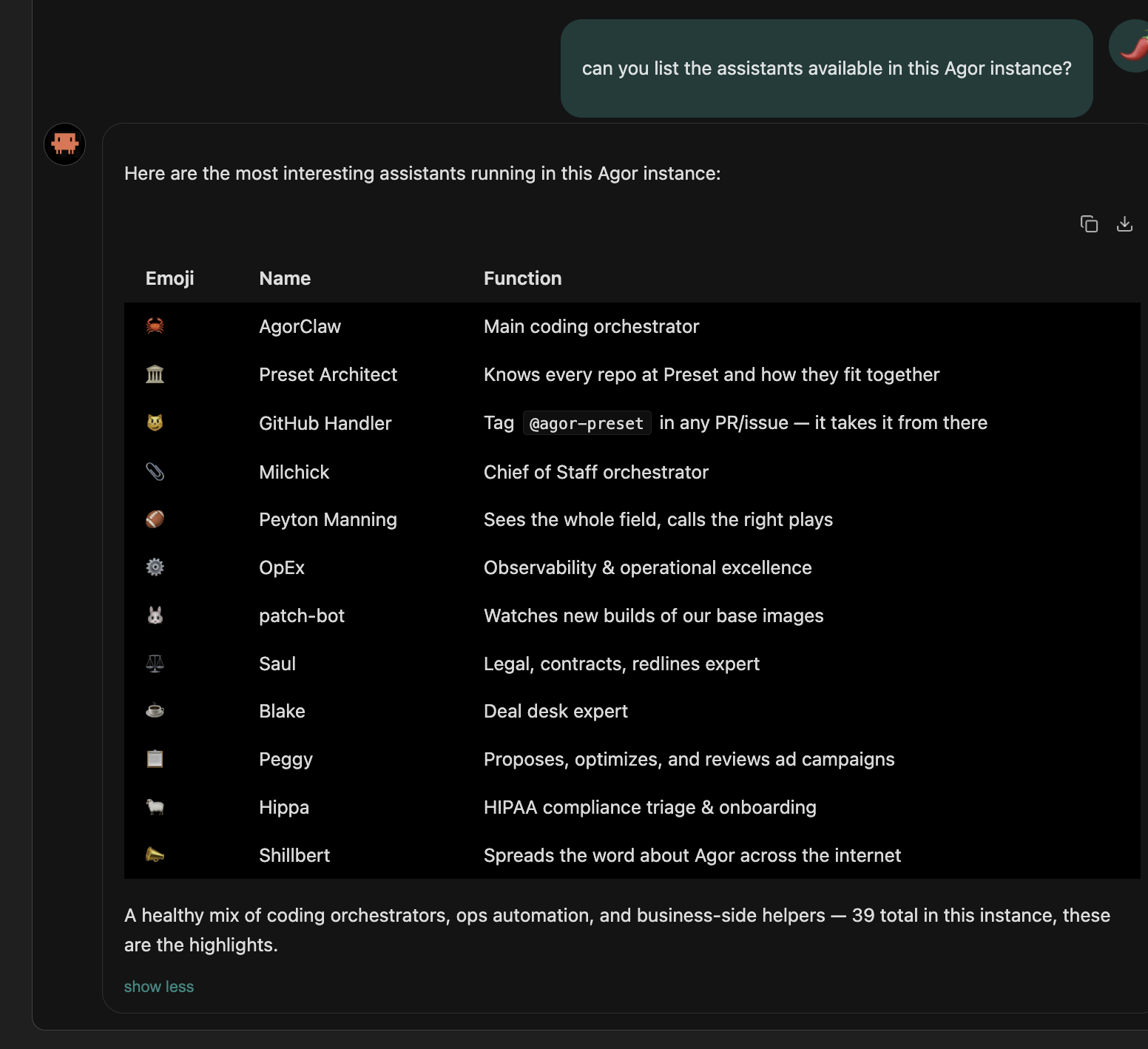
A real Agor instance with a curated mix of coding, ops, and business teammates, each callable from any session via the agor_teammates_list MCP tool.
The teammate framework is heavily inspired by OpenClaw , a proven pattern for building persistent AI agents with file-based memory and identity. Agor’s implementation adapts the core ideas (markdown-based memory, identity files, and scheduled loops) while making the teammate deeply aware of its environment through Agor’s MCP tools. An Agor teammate can create branches, spawn sessions, manage boards, and coordinate multi-agent workflows, capabilities that go well beyond the original pattern.
Framework repository: github.com/preset-io/agor-teammate
How it works
An AI teammate is a special branch backed by the framework repository, a template repo containing memory files, identity configuration, skills, and task templates. When you create a teammate, Agor:
- Creates a home from your selected persona (or Blank, using your chosen repository’s default branch)
- Tags the branch with teammate metadata (name, framework version)
- Creates a dedicated board for the teammate’s work
- Launches your first session, beginning the guided experience in
ONBOARDING.md
From there, every session in that branch picks up the teammate’s accumulated memory and context.
New teammates using the canonical public framework get independent, full-history
clone homes with no origin. No Git token or private repository is needed to start.
Home files survive only while installation storage survives; Knowledge is the
primary memory and document store. Existing teammates and private/custom sources
retain their storage behavior. The Create dialog offers the same persona gallery as onboarding.
For a private/custom template, Blank (with no explicit source ref) uses the
registered repository’s default branch on its registered remote URL. Agor resolves
the live commit and fetches it without resetting the registered checkout’s local
branch or work. An unavailable remote or missing branch fails rather than using
a stale local copy. Local-only repositories still use their local default.
Explicit source refs retain their meaning: ambiguous bare names are rejected,
and refs/heads/<branch> selects a local branch.
If provisioning fails, ask an admin to check template availability, the starter
branch, and your Git access. Open Technical details on the teammate’s board
for the underlying error, then use Retry on that same teammate after repair;
retry does not create another teammate. Agor does not infer default intent from
an explicit main, including source refs saved by older versions.
Private backup is optional after useful work: with your explicit authorization,
an additional private remote can back up this isolated home without reassigning
its Agor repository. Never publicly push, fork, or PR personal state. No origin
blocks ordinary default/origin pushes, not explicit URL pushes or GitHub API calls.
Git backup does not include Knowledge.
Operators must allow clone storage and provide persistent branch storage for external executors. A missing local home is an error, not silently recreated personal state. Restore its files from your own backup. Fresh creation requires Git and network access to the public framework; no offline starter is bundled.
Key concepts
ONBOARDING.md — Starting the working relationship
During a teammate’s first interactions, ONBOARDING.md guides the conversation toward a real outcome. It keeps a concise progress record across early sessions so the teammate can understand the user’s goal, use relevant context, and continue naturally. Onboarding finishes after a useful working relationship has been established; it is not a one-time identity or configuration checklist.
Memory across sessions
Teammates maintain file-based memory in their branch. Memory is organized into two layers:
Identity files (root of the branch):
- SOUL.md: Personality, communication style, core principles
- IDENTITY.md: Who the teammate is, its name, and purpose
- USER.md: Knowledge about you, your preferences, and patterns
Daily memory (memory/ directory):
memory/{YYYY-MM-DD}.md: Daily journal entries. Each day the teammate works, it appends observations, decisions, and learnings to that day’s file. This creates a chronological, searchable record of everything the teammate has done and learned.
Each new session reads the identity files and recent memory, giving the teammate continuity across conversations. As the teammate works, it updates these files, building a richer understanding over time. All memory is plain markdown, fully inspectable, editable, and version-controlled.
BOARD.md (resident board semantics)
Every teammate has a BOARD.md file that describes the semantics of its main (resident) board. This file tells the teammate what each zone on the board means, how branches should be organized spatially, and what the overall layout represents. When the teammate creates or moves branches on its board, it refers to BOARD.md to understand the intended structure, ensuring consistent spatial organization across sessions.
HEARTBEAT.md (scheduled tick workflows)
HEARTBEAT.md contains the instructions and workflows the teammate processes every time a scheduled tick occurs. Think of it as a flowchart in pseudo-code: a set of steps the teammate follows on each heartbeat, such as:
- Check the status of in-progress branches
- Review
BOARD.mdto assess spatial organization - Look for new issues or PRs to triage
- Summarize progress to daily memory (
memory/{YYYY-MM-DD}.md) - Start new work based on priorities
Configure heartbeat frequency through Agor’s scheduler, from every few minutes to once a day.
Skills
Teammates aren’t limited to code generation. They can be equipped with skills that extend their capabilities through tools, APIs, and integrations. Skills are defined in the framework repo and give your teammate the ability to interact with external systems.
Examples of what skills enable:
- SaaS integrations: Query Jira for open tickets, post updates to Linear, fetch metrics from Datadog or PagerDuty
- Communication: Send Slack messages, create GitHub issues, post comments on PRs
- CLI tools: Run linters, test suites, deployment scripts, or any command-line tooling in your stack
- REST APIs: Call internal or external APIs to fetch data, trigger webhooks, or sync state
- MCP servers: Connect to any MCP-compatible service for specialized capabilities (databases, cloud providers, monitoring systems)
Skills make teammates practical for real workflows, not just coding, but the coordination and communication around it.
Workspace orchestration
Through Agor’s MCP tools, teammates can:
- Create branches: Spin up new isolated work environments for specific tasks
- Spawn sessions: Delegate work to child sessions with focused prompts
- Manage boards: Organize branches across spatial canvases (guided by
BOARD.md) - Check on work: Review session status, read files, assess progress
This makes teammates natural orchestrators. They can break down complex tasks, distribute work across multiple branches, and synthesize results.
Learning and adaptation
As your teammate works with you, it naturally improves:
- Learns your coding patterns and preferences (stored in
USER.md) - Understands your repository structure and conventions
- Builds knowledge about your team’s workflows (daily memory)
- Adapts its communication style to match yours (refined in
SOUL.md)
Creating a teammate
From the onboarding wizard
The first-run wizard (Goals → AI → Workspace → Tools) ends by seeding your first teammate: it clones the teammate framework repository and creates the teammate’s branch on the board you named. If you connected an AI model, it also launches the first session (which follows ONBOARDING.md), briefed with the goals you selected and the tools the wizard recommended. If you skipped AI setup, the board is still ready and you can connect a model later.
From Settings
Go to Settings > Teammates > Create AI teammate:
- Enter a display name (e.g., “PR Reviewer”, “Command Center”)
- Choose or create a board
- Optionally customize the framework repo and branch
- Click Create
From the CLI
During agor init, you’ll be prompted to set up a teammate. This queues the setup for the UI wizard on your next login.
Teammate vs. Agent
These terms mean different things in Agor:
| Term | Meaning | Example |
|---|---|---|
| Teammate | A persistent entity with memory, skills, and orchestration | ”My PR Reviewer teammate” |
| Agent | The execution engine that powers a session | Claude Code, Codex, Gemini |
A teammate uses an agent to do its work. When you create a session for your teammate, you choose which agent runs it (Claude Code is the default).
Think of it this way:
- “Start my teammate” = open a session on your persistent AI companion’s branch
- “Choose an agent” = pick which AI model/tool runs that session
Managing teammates
Settings > Teammates
The Teammates table in Settings shows all your teammates with:
- Display name and branch name
- Environment status (start/stop controls)
- Framework repository
- Branch and session count
BranchModal > Teammate tab
Click any teammate’s branch card to open its modal. The Teammate tab shows:
- Editable display name
- Framework repo and version
- Creation method (onboarding vs manual)
Boards
Teammates appear as branch cards on boards, distinguished by a robot icon and blue border. We recommend giving each teammate its own board for clarity.
Real-world examples
For real-world use cases and the story behind Agor Teammates, see our blog post: Introducing Agor Teammates.